Dusk Patrol
User guide
Choose a tab. Follow the conversion steps or look up a feature.
| Feature | Description |
|---|---|
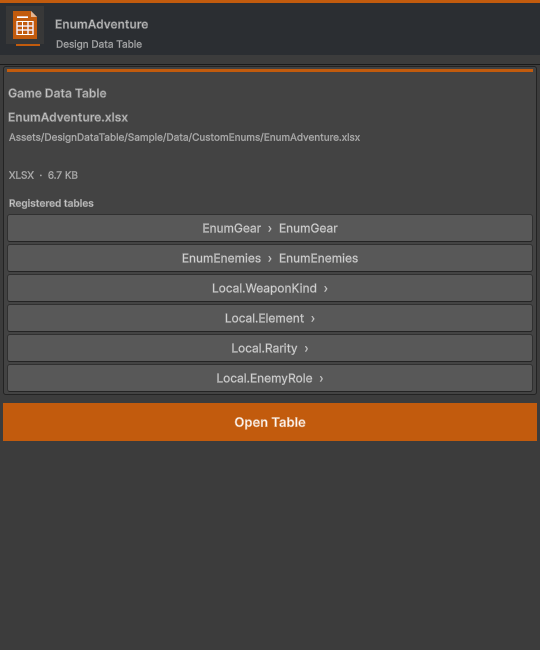
| XLSX / CSV | Double-click a file in Project, or select Open Table in its Inspector. |
| Assets > Create > Design Data Table | Create a standard XLSX, CSV, game-data XLSX or global Enum workbook. |
| Feature | Description |
|---|---|
| Input / Enter / Tab | Type to edit; Enter moves down and Tab moves right. Esc cancels the current edit. |
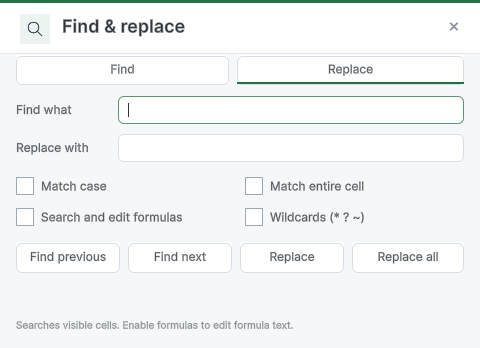
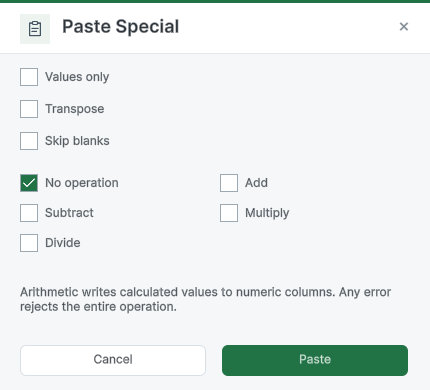
| Copy / Paste / Fill / Find | Copy ranges, paste special, drag the fill handle, or use Find/Replace. Wildcards are optional. |
| Feature | Description |
|---|---|
| Sheets | Use bottom tabs to switch sheets. The + and tab menu add, rename or delete a sheet. |
| Minimize / Maximize / Preview | Minimized documents appear in the bottom list. Hover for a card, then hover the card for the full preview; click to restore. |
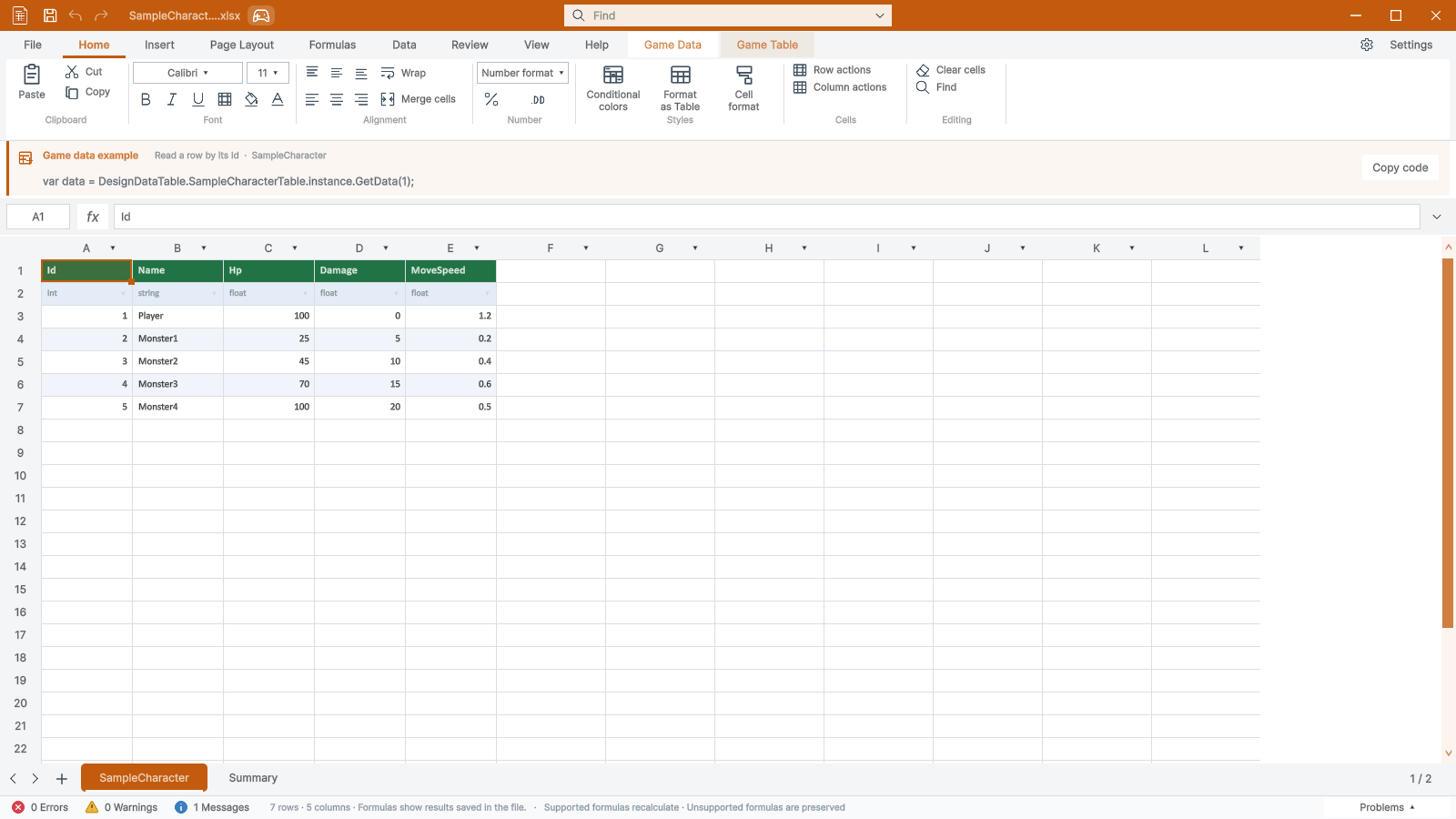
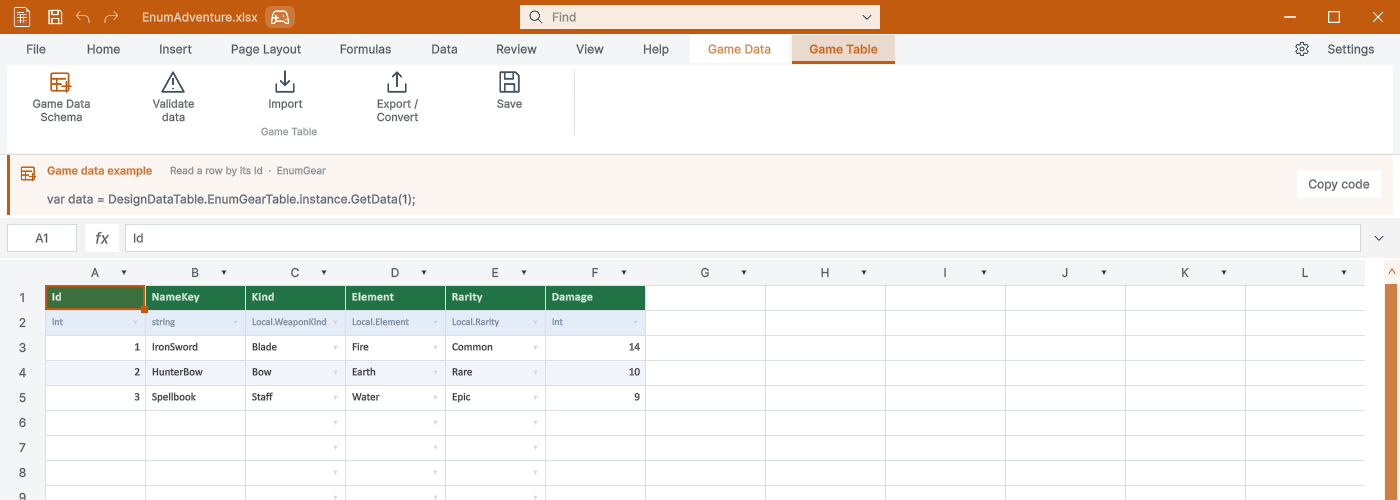
| File status | Green: spreadsheet; orange: game data; blue: localization. Window and file icons follow the same status. |
| Close unsaved file | Closing an edited file asks Save, Cancel or Discard and shows its filename and path. Failed saves keep the file open. |
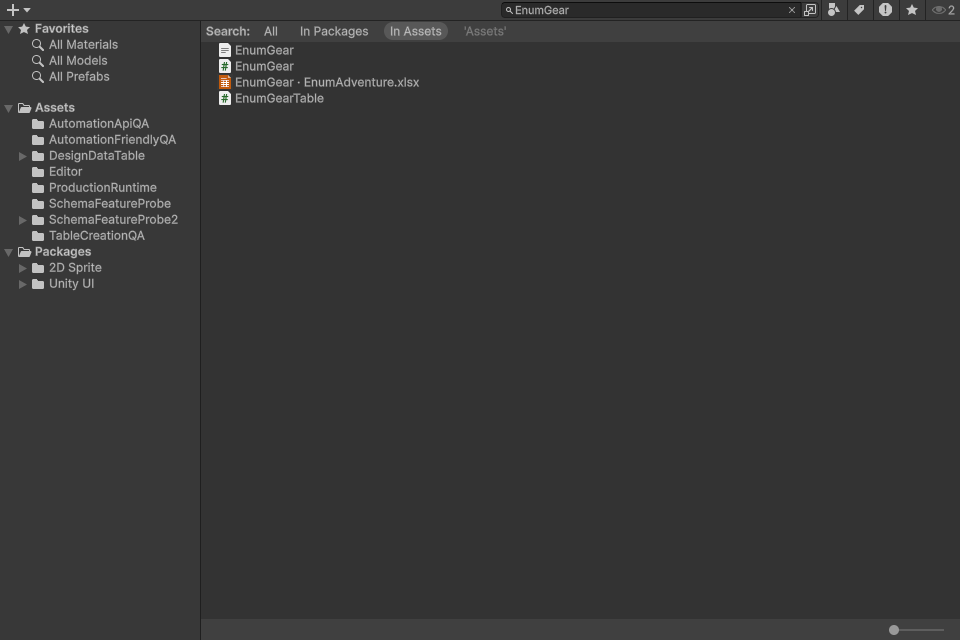
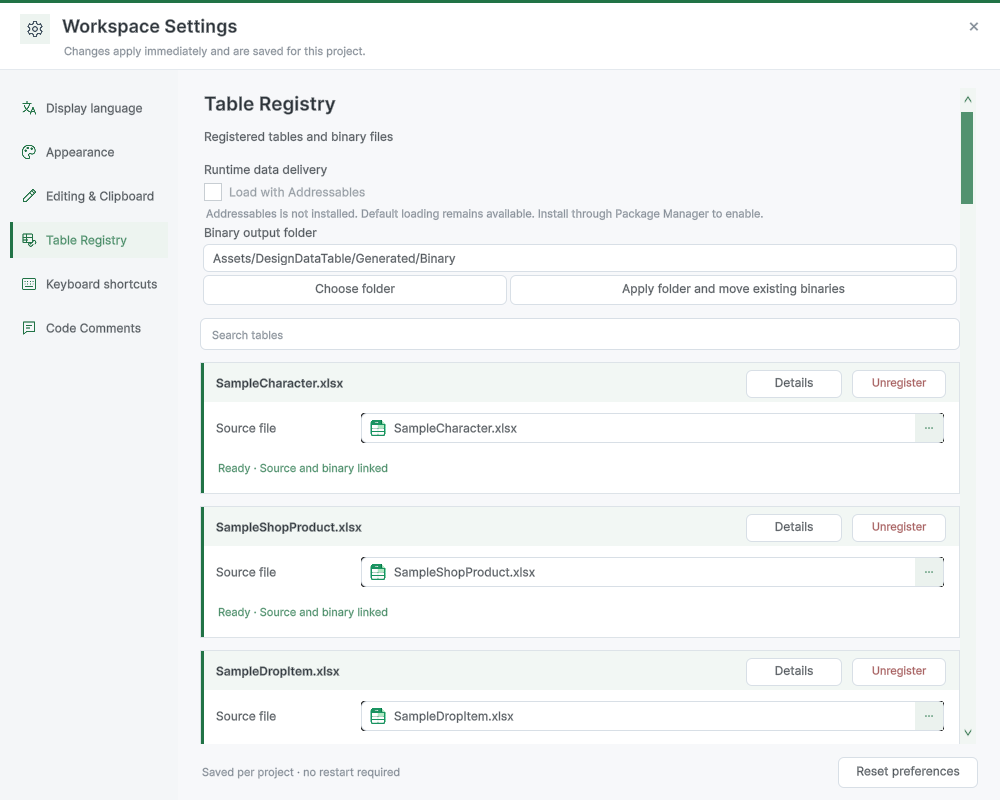
| Table name search | Search a registered XLSX table name in Project. The workbook result includes its original filename and opens that worksheet; one file may keep several tables. |
| Contextual tabs | Settings stays at the far right. Between Game Data and Settings, tools appear for the registered game/localization sheet, Enum/Summary sheet or selected table, shape, chart or picture. Object tools activate on selection and disappear on deselection. |
| Feature | Description |
|---|---|
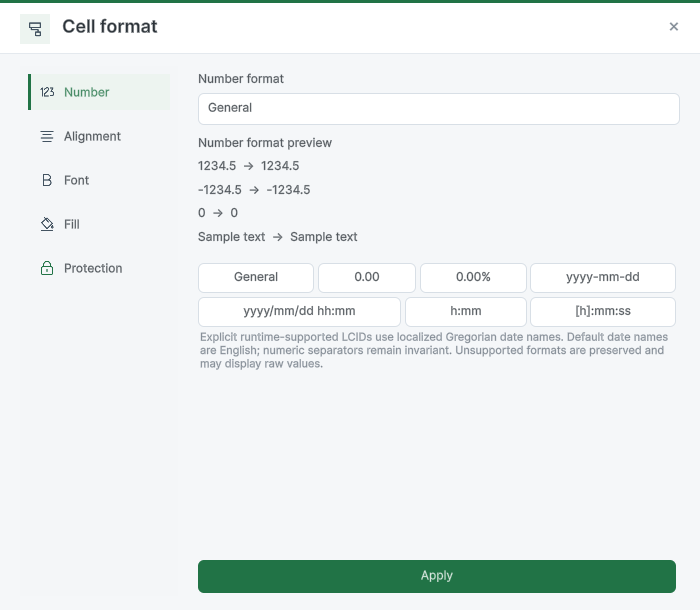
| Cell format | Set fonts, alignment, number formats, fills and borders. Resize rows and columns or freeze headers. |
| Sort / Filter | Use column-header menus. Sorting changes row order; filters hide rows without deleting records. |
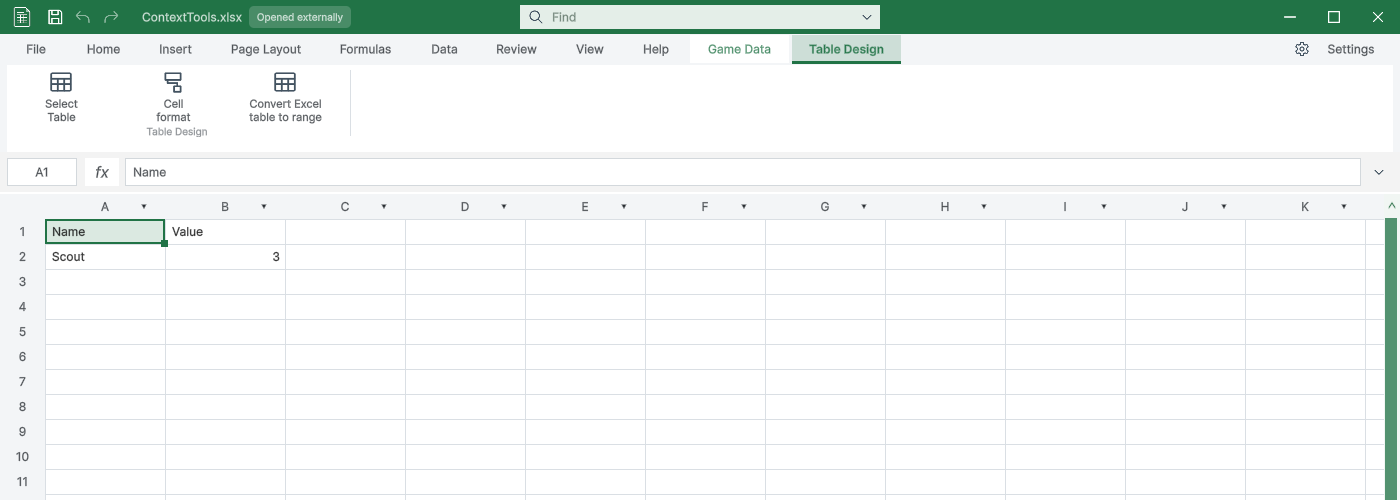
| Table Design | Selecting a structured Excel table reveals Table Design. Select its range, open cell formatting, or convert the table to an ordinary range; Undo restores the table and its contextual tab. |
| Feature | Description |
|---|---|
| Formula bar | Enter =SUM(A3:A6) and other supported formulas. Unsupported formulas retain the original and cached result. |
| Feature | Description |
|---|---|
| Charts | Select a chart to edit its supported series and display options. |
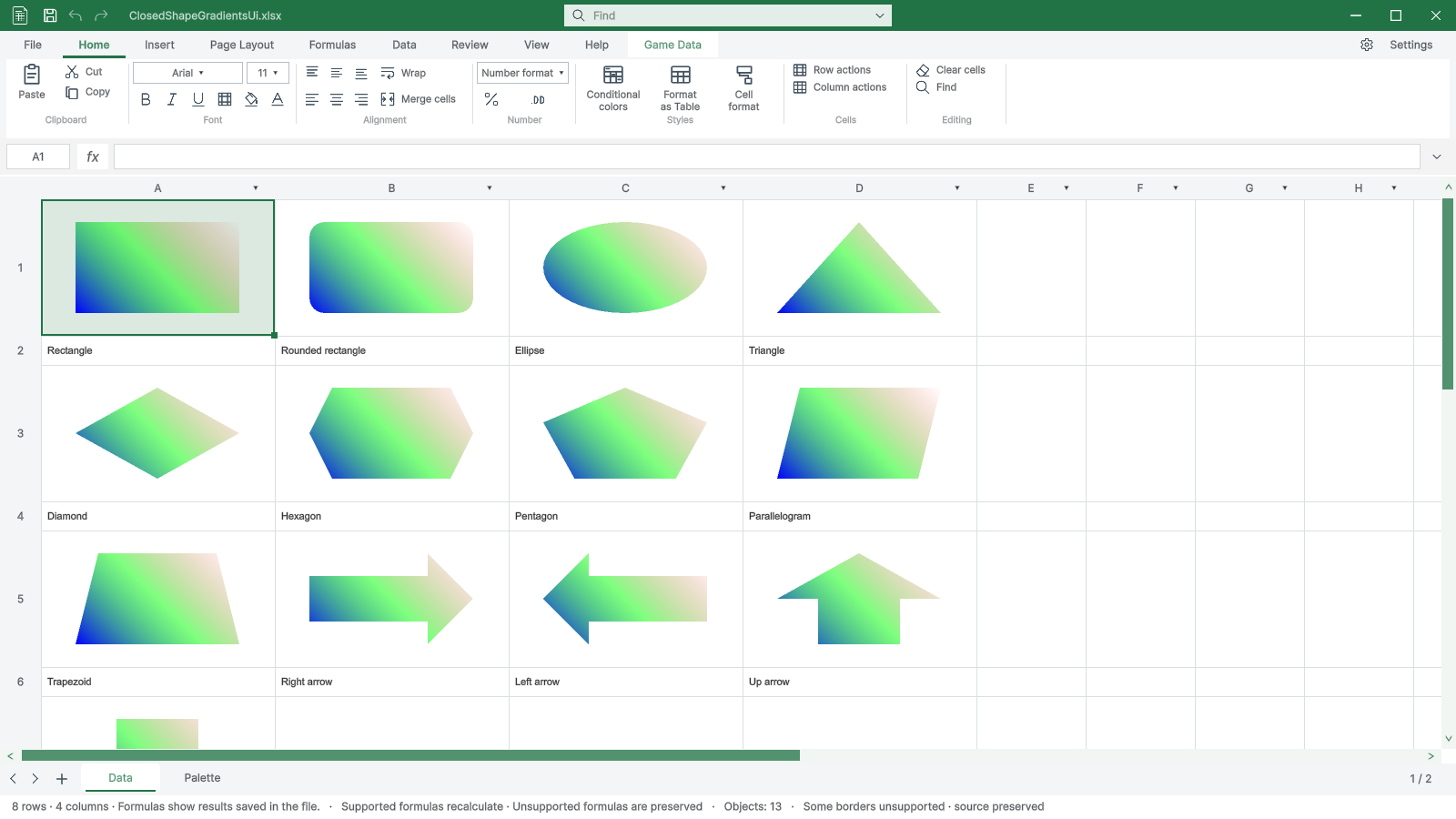
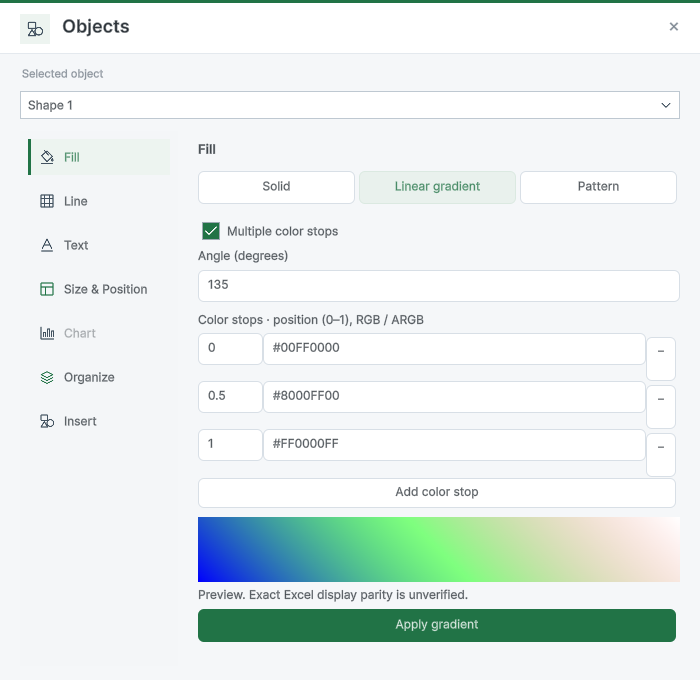
| Objects | Double-click for fill, line, text, size and position. Preset and custom paths are supported; read-only objects remain preserved. |
| Shape Format / Chart Design | Select a shape, chart or picture to open its contextual tools. Fill, line, text, chart settings, size/position and organization open the existing property editor on the matching page. Available operations follow the selected object’s support and protection limits. |
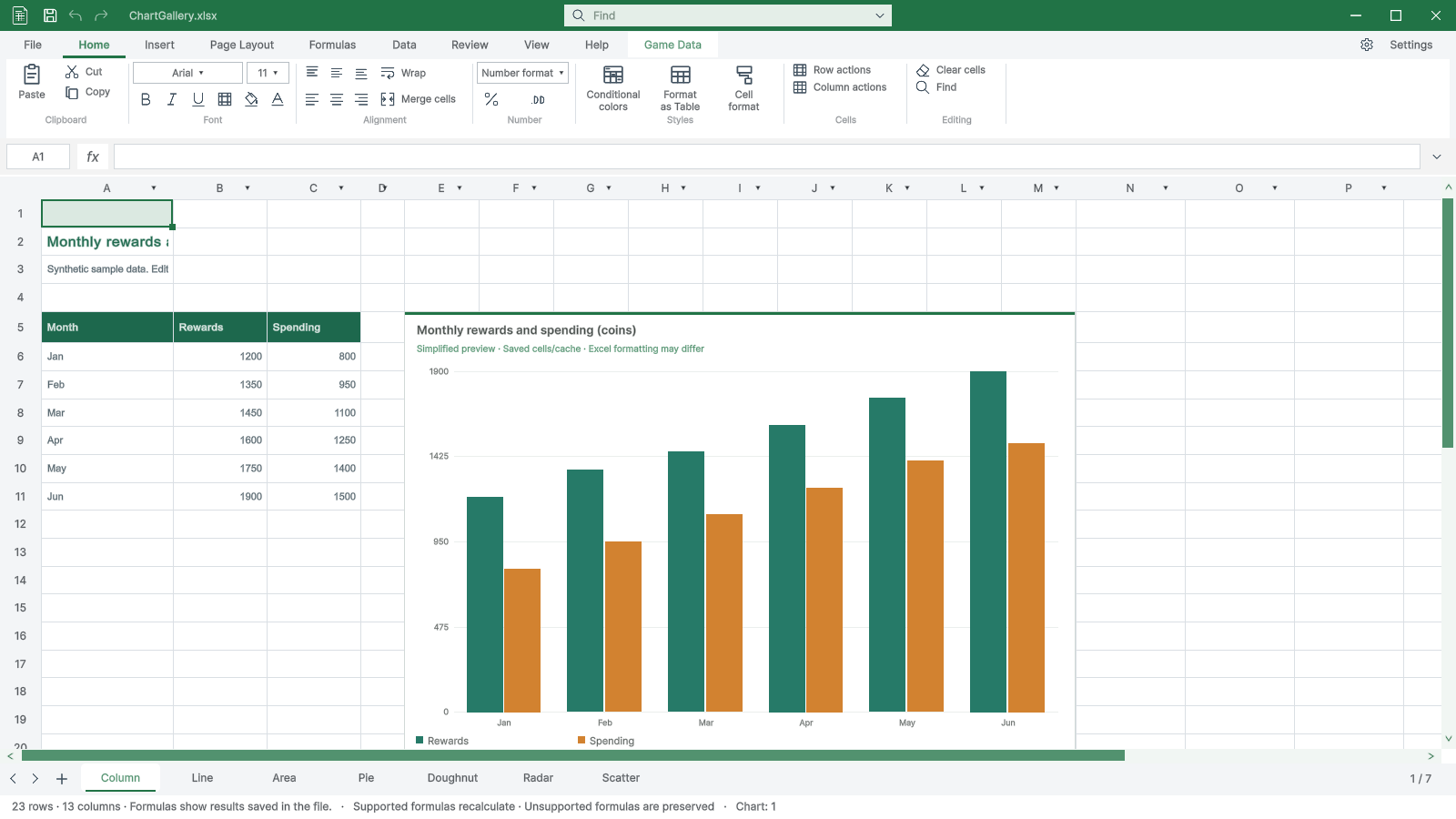
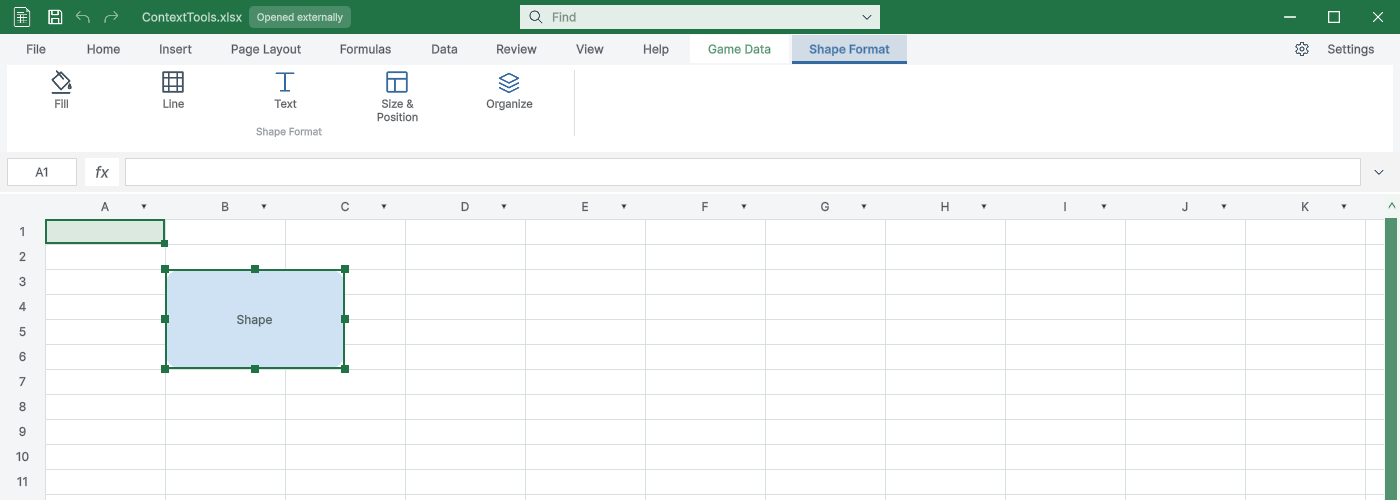
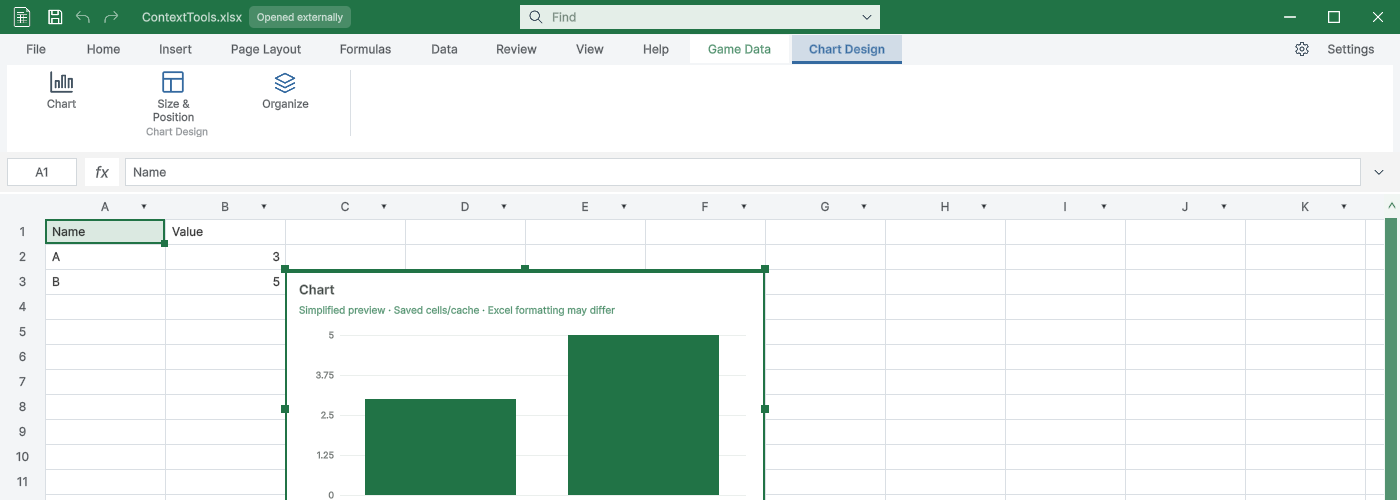
| Feature | Description |
|---|---|
| Save / Recovery | Save updates the original file. Unsaved-close prompts show its name. Recovery drafts do not overwrite the original automatically. |
| Document colors | In Settings > Appearance, set the normal, game-data, global Enum and localization colors independently. Title bars, selection, sheet tabs and source icons update immediately. Colors are saved per project and Reset restores their defaults. The Game Data ribbon tab follows the active window color. |
| Settings > Appearance > Window animations | Turn minimize, maximize, restore and preview effects on or off. Default: on. Hover delays stay unchanged. |
| Option windows | Use the left categories; advanced colors, formatting and table details expand only when needed. Shape fill shows one paint type at a time. |
| Play appearance | Options retain their normal brightness during Play. Disabled commands remain unavailable. |
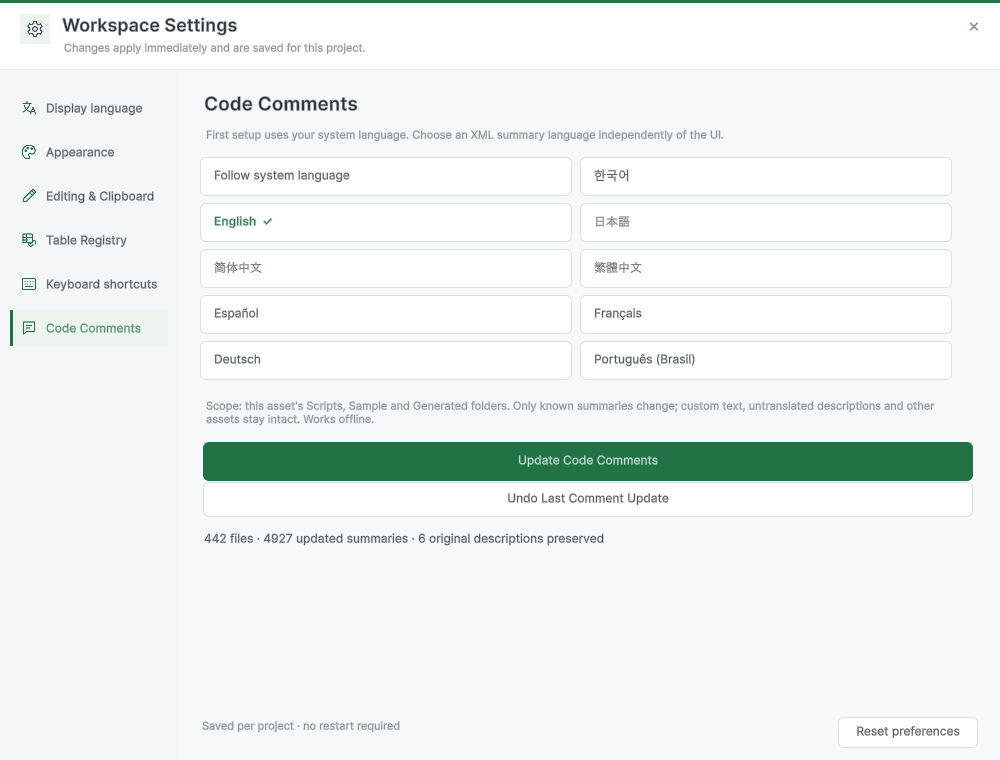
| Settings > Code Comments | First setup uses the system language. Select a separate comment language and choose Update Code Comments. Known XML summaries in this asset are updated offline; custom and untranslated descriptions stay intact. Generated code uses the selected language. Undo Last Comment Update preserves files edited since the update. |
| Command icons | Ribbon, settings and file menus use matching image icons. Localization has separate icons for rebuilding translations, viewing generated data and changing the default language. Semantic icons follow the document color; title-bar controls stay white. |
| Usage examples | A card below the ribbon shows code for the active game table, Enum or localization sheet. Selecting an Id, member or translation key updates the example. Copy code copies the complete expression. Localization labels its fallback language; Summary explains column synchronization. |
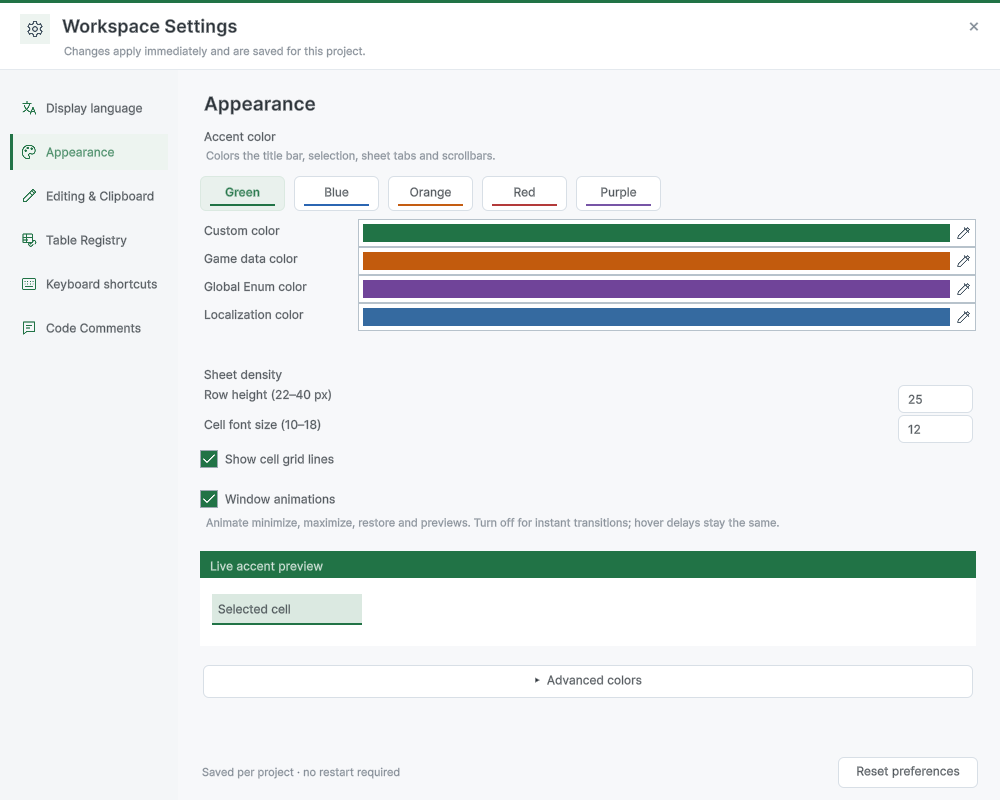
| Feature | Description |
|---|---|
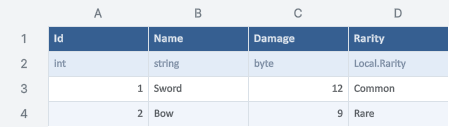
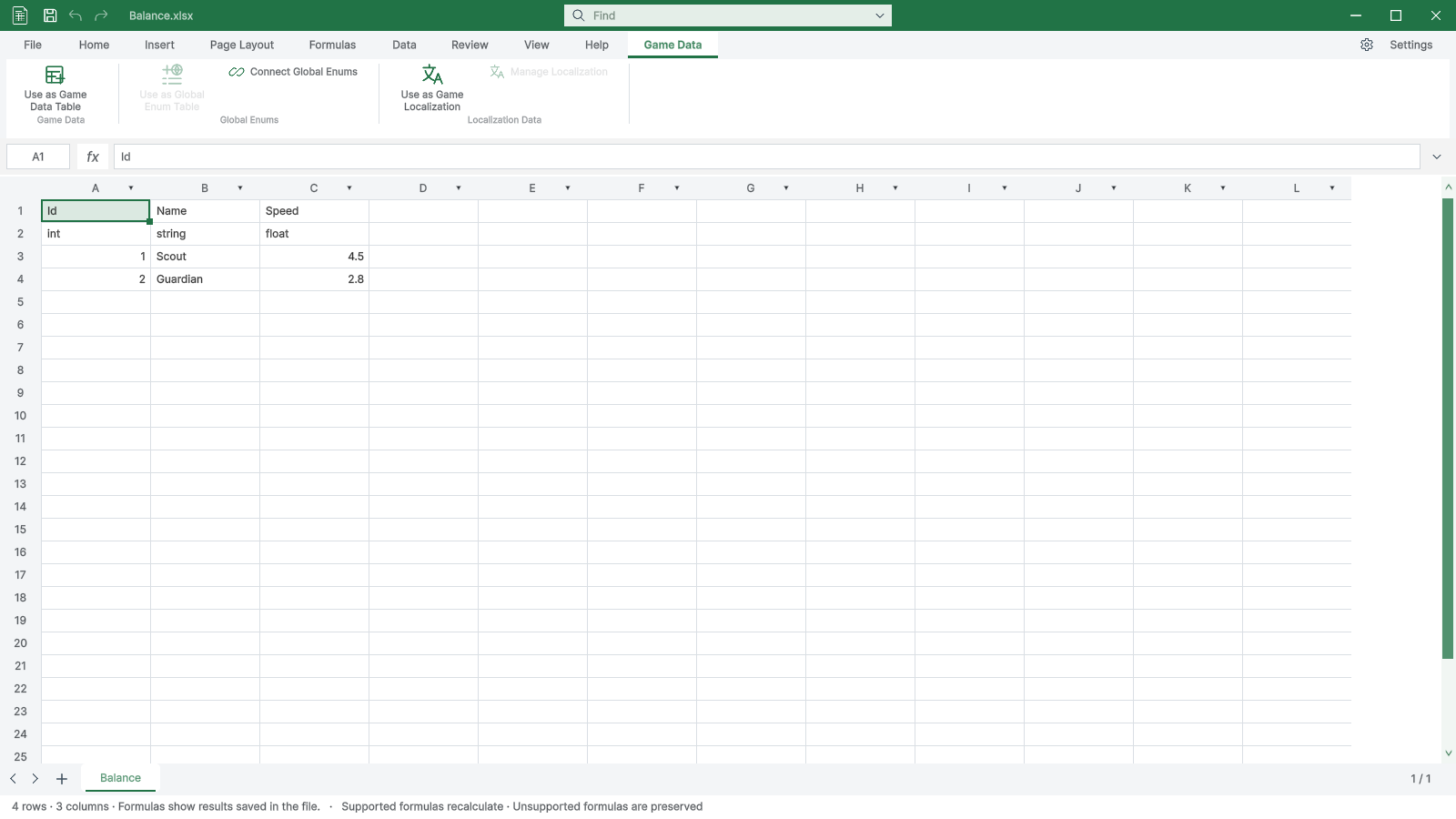
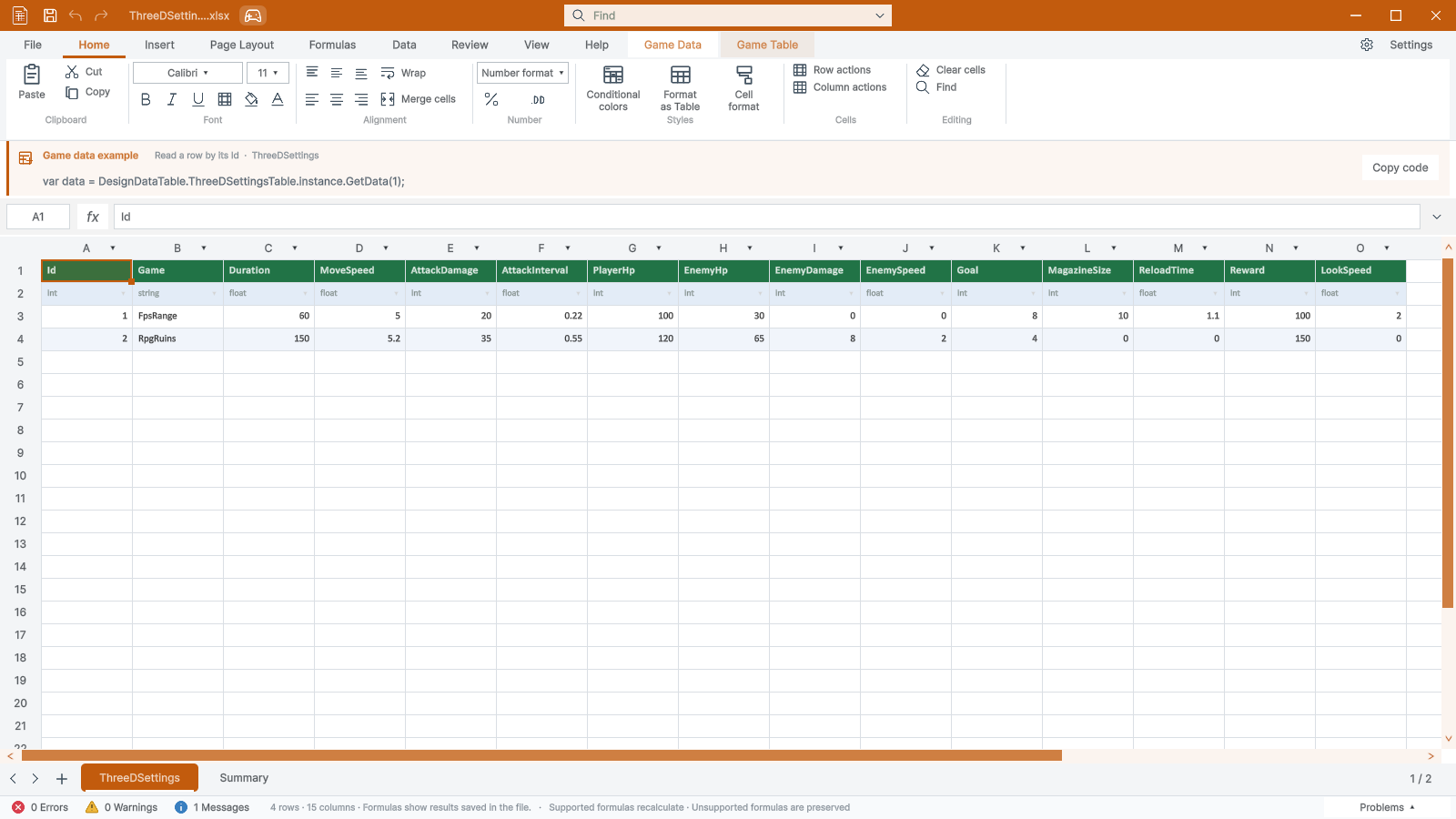
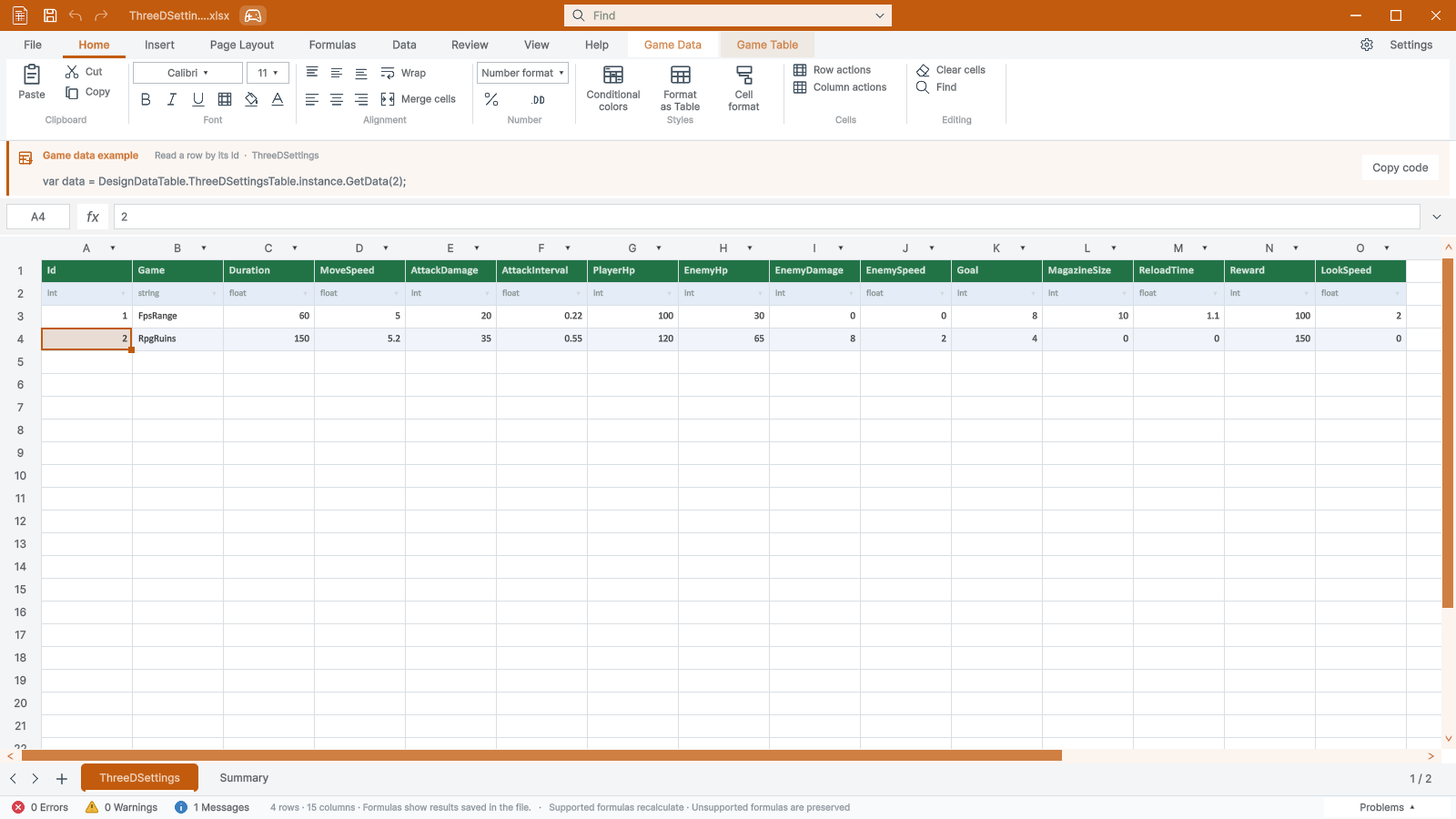
| 1 · Prepare | Save an XLSX inside Assets. Row 1: column names; row 2: types; row 3 onward: records. Start with Id : int. |
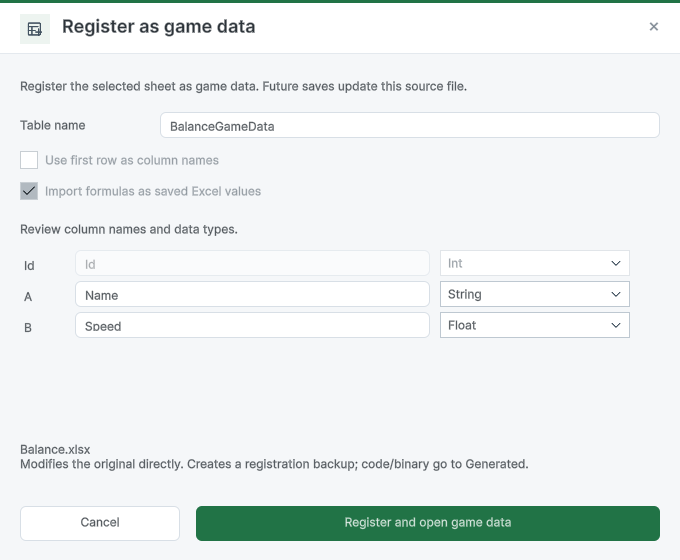
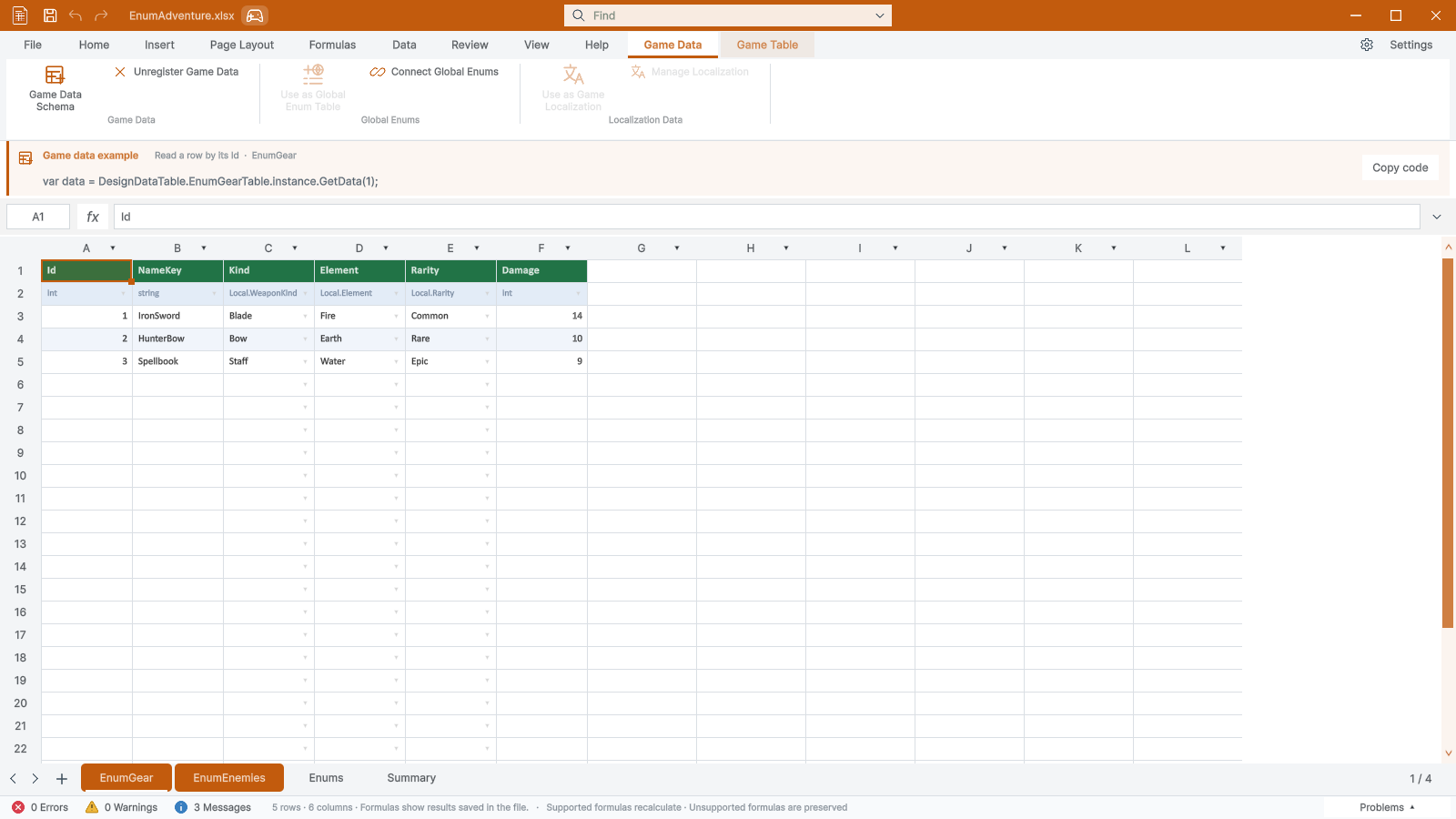
| 2 · Register | Save, select a data sheet, then Game Data > Use as Game Data Table. Summary and Enum definition sheets cannot be registered. |
| 3 · Validate & save | Registration adds Summary and an orange tab. Save validates types and Ids, then refreshes generated C# and binary data. |
| 4 · Use in game | Read generated Table.instance.GetData(id). After changing column types, wait for Unity compilation before Play. |
| Id | Name | Speed |
|---|---|---|
| int | string | float |
| 1 | Scout | 4.5 |
| 2 | Guardian | 2.8 |

| Feature | Description |
|---|---|
| Game Data ribbon | Three sections: Game Data, Global Enums and Localization. Large actions and smaller supporting commands follow the Home ribbon layout. |
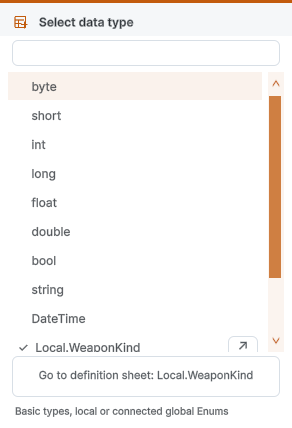
| Row 2 | Use the type dropdown: byte, short, int, long, float, double, bool, string, DateTime or a defined Enum. |
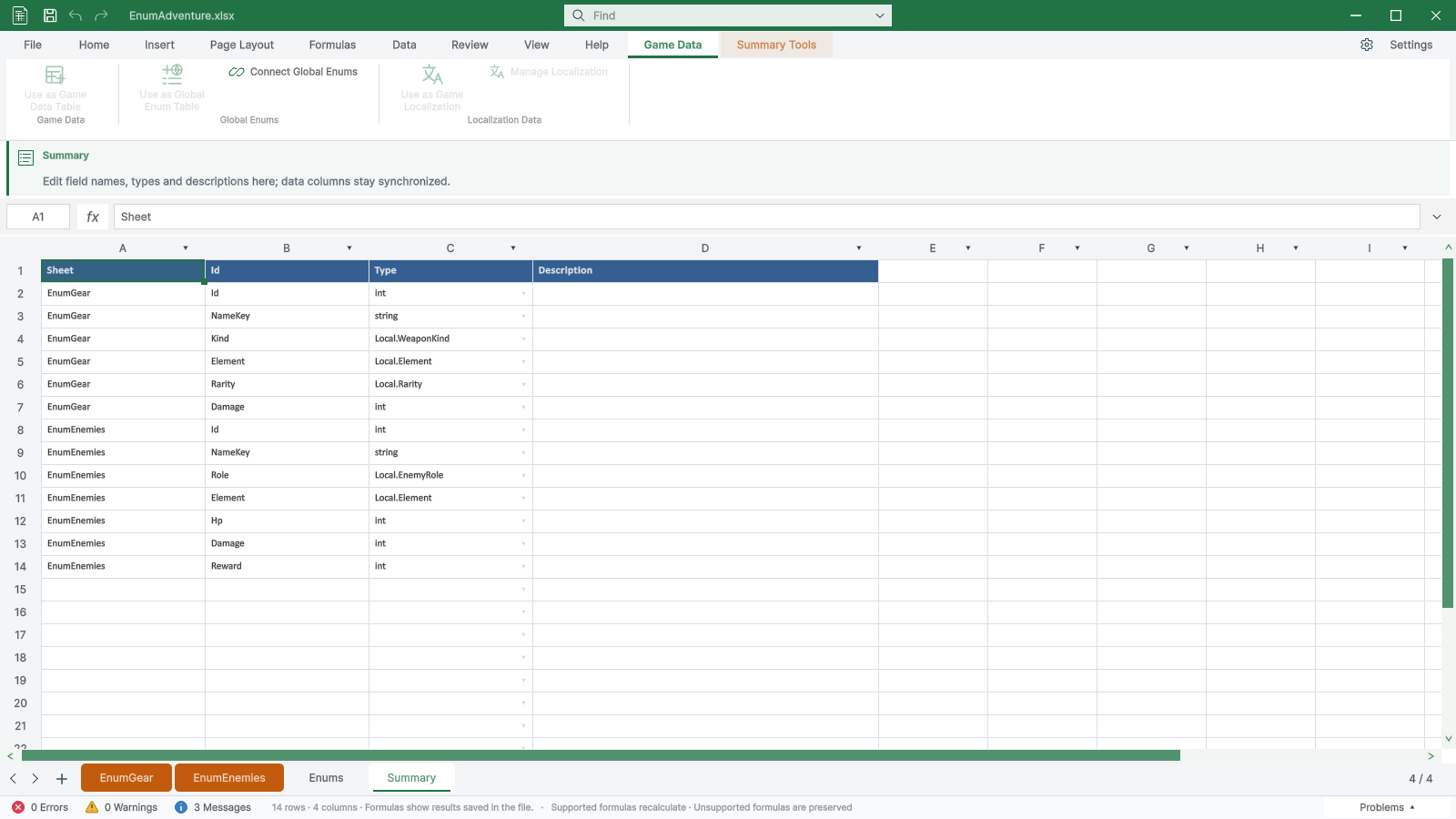
| Two-way sync | Adding a named source column updates Summary. Completing a Summary row inserts its source column. Existing values are retained. |
| Workbook / Sheets | One workbook can register several data sheets. Summary identifies their columns by Sheet. |
| Integer codes | Leading-zero codes and integer text outside Int64 are inferred as strings to preserve their digits. |
| Summary | Created automatically for game tables, including existing registered tables when opened. Required Summary cannot be deleted; there is no Create Summary button. |
| Game Table / Enum Tools | Game Table: schema, validation, import/export and save. Enum Tools: definition-sheet navigation, validation and code rebuilding. Summary Tools links back to the registered game sheets. |
| Feature | Description |
|---|---|
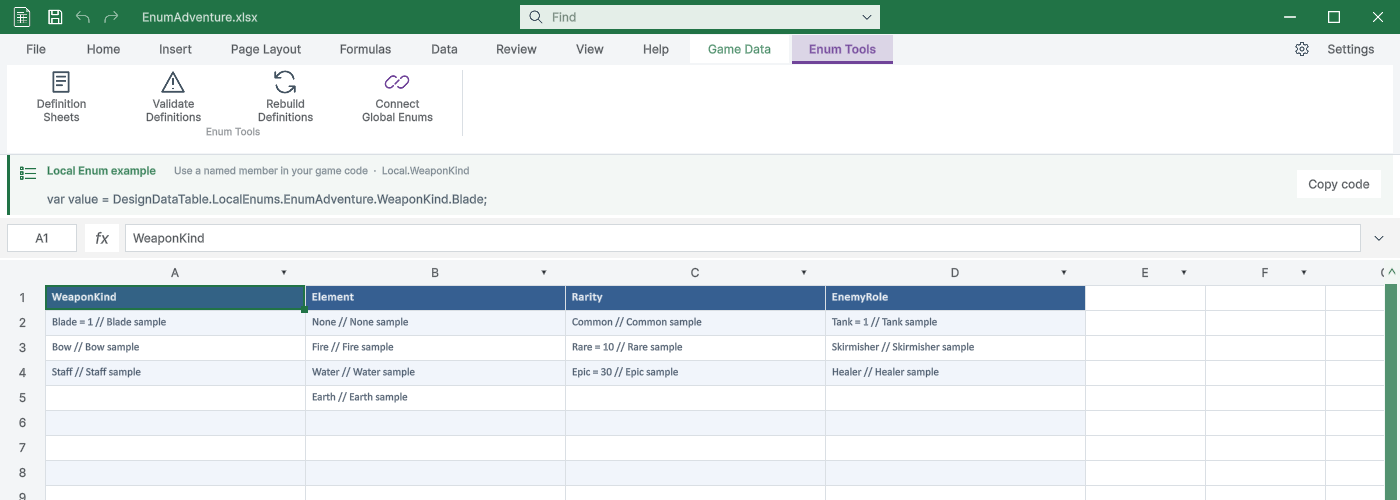
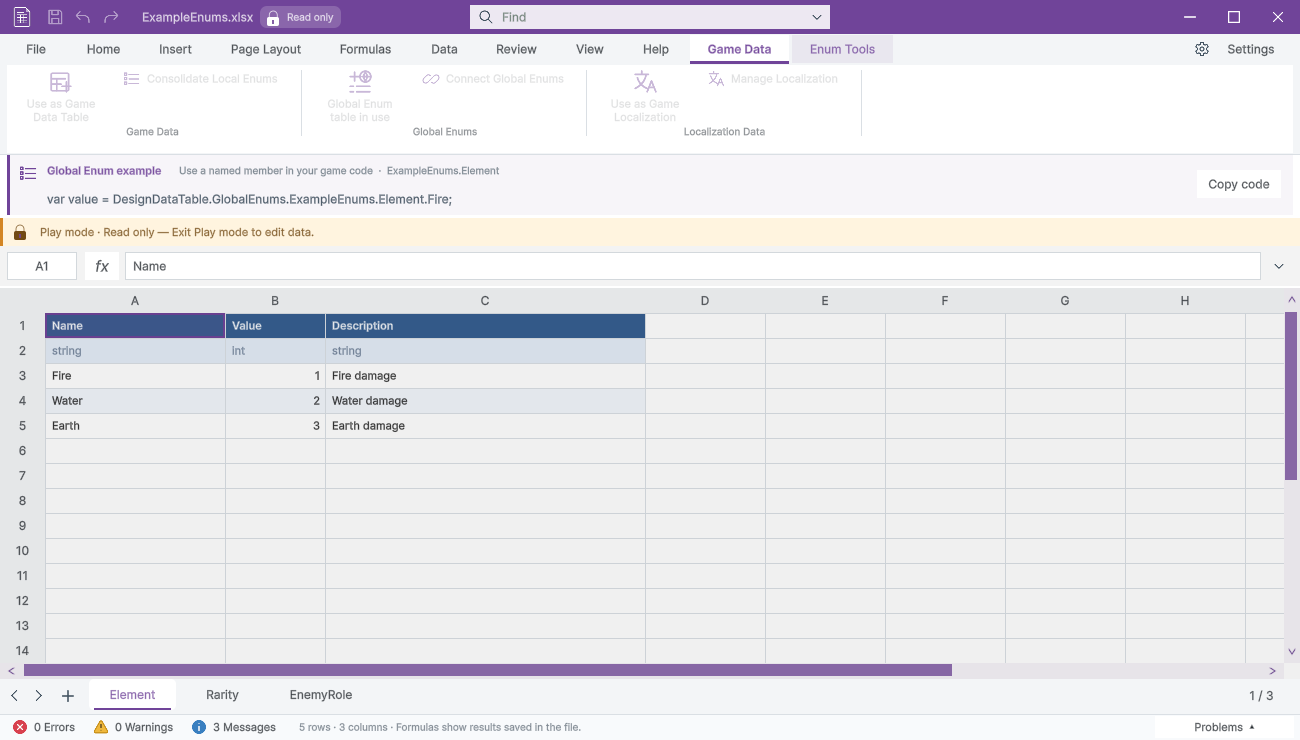
| Local · Enums | Each column defines one Enum. Row 1 is the type name; rows below contain members such as Blade or Rare = 10 // Description. |
| Values & dropdowns | Numbers and descriptions are optional. Automatic numbering starts at 0, then continues from the previous value. Select members in data cells. |
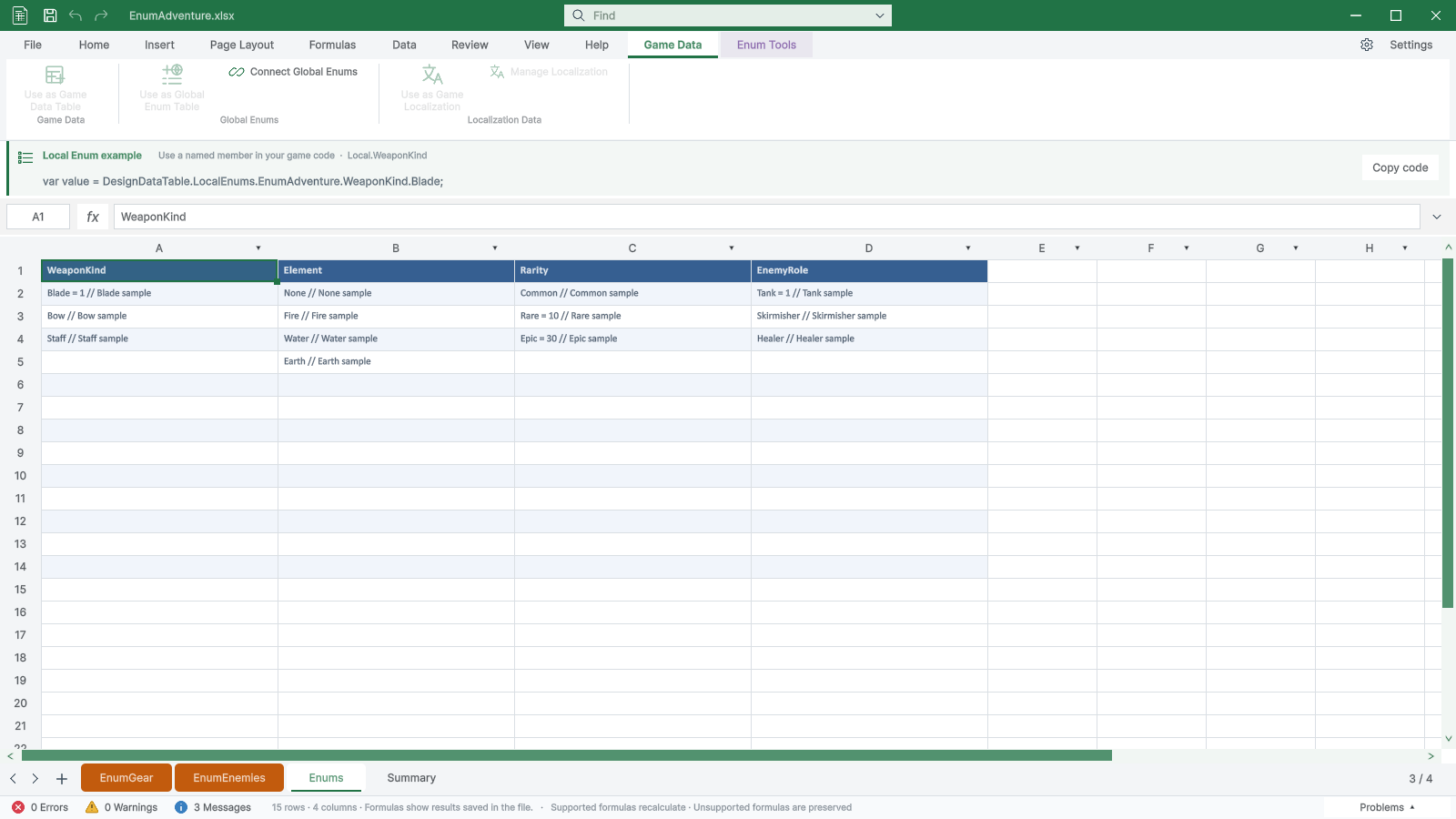
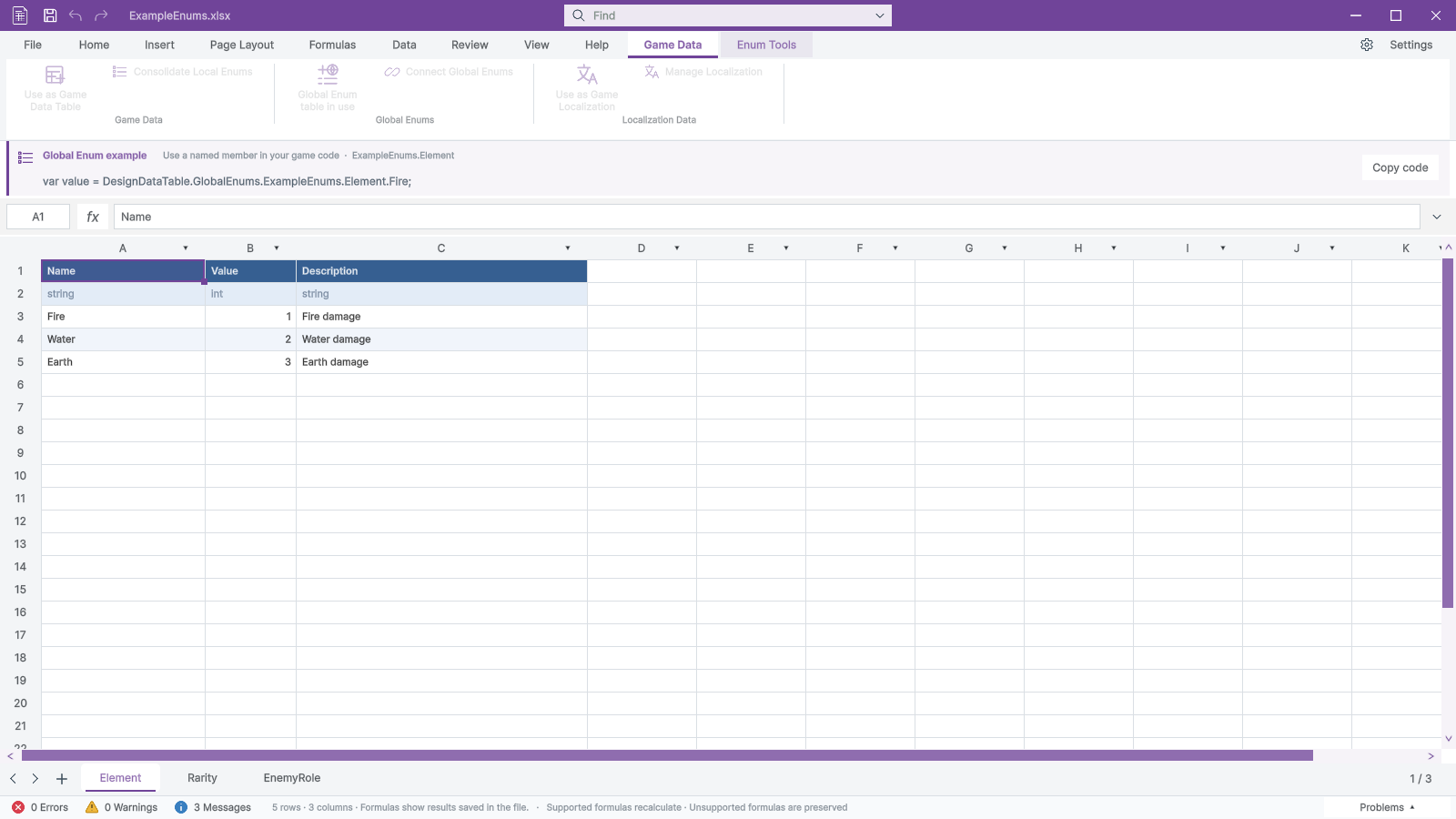
| Global · Connect Global Enums | Register a global Enum workbook, connect it in a consumer, then choose Group.Enum in row 2 to share one C# type. |
| Feature | Description |
|---|---|
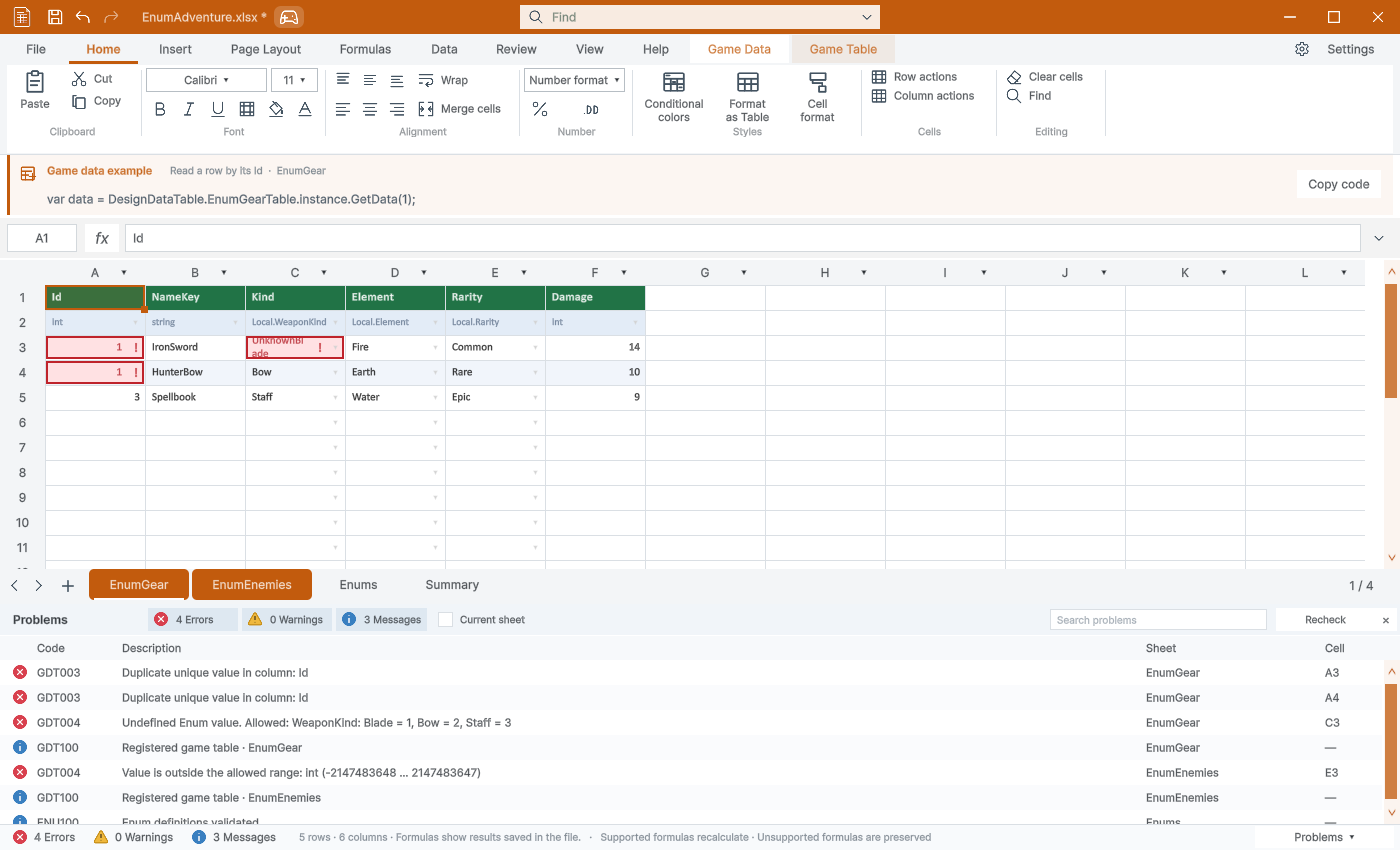
| Warnings | Invalid, reserved or duplicate columns, missing Enums and format/range errors are marked red. Fix errors before saving. |
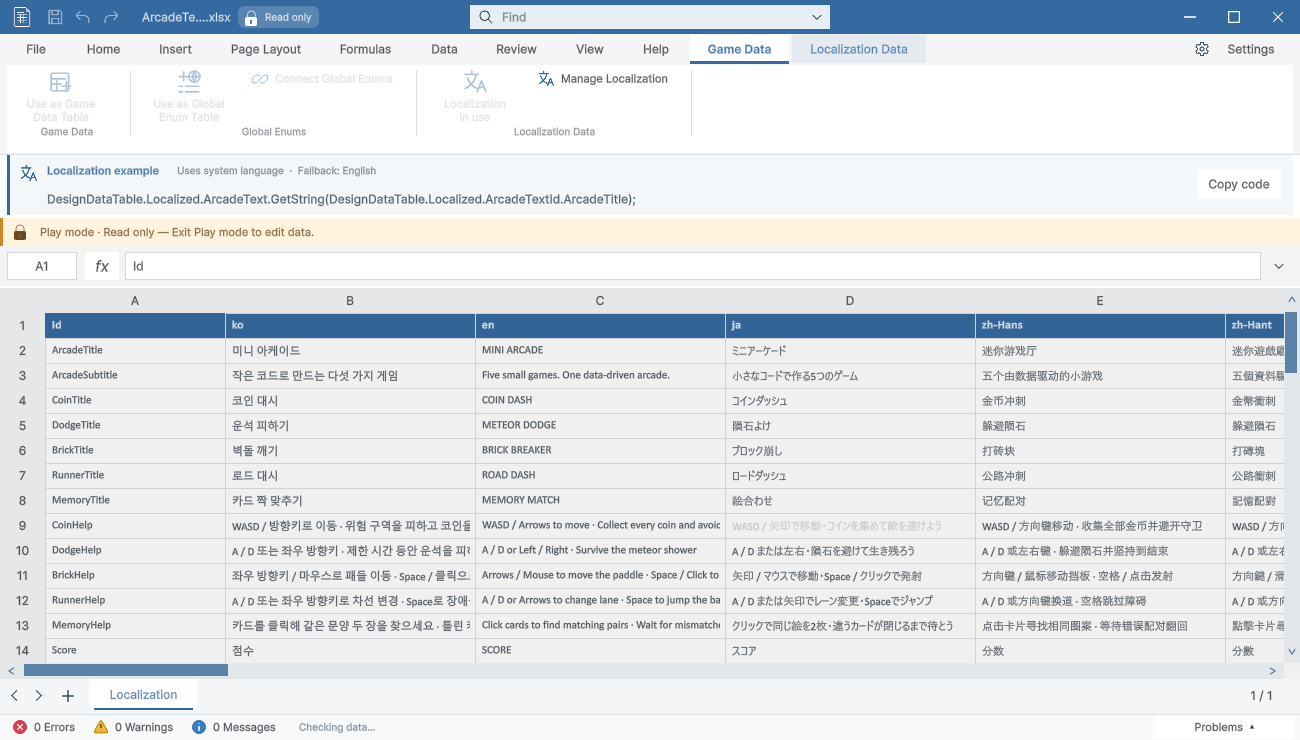
| Play mode / External files | Game data, localization and local/global Enum workbooks are read-only during Play, including other sheets in the same file. A lock badge, notice and dimmed grid show the state. Editing, saving and rebuilding are blocked; leaving Play restores editing. External files require an Assets source for registration. |
| Problems | Bottom status shows error, warning and message counts for registered game data, Enums and localization. Click a count or Problems to expand. Filter by severity or sheet, search codes/messages, and click a row to select its source cell. Drag the top edge to resize. Changes refresh validation incrementally; Recheck starts a fresh scan. |
| Feature | Description |
|---|---|
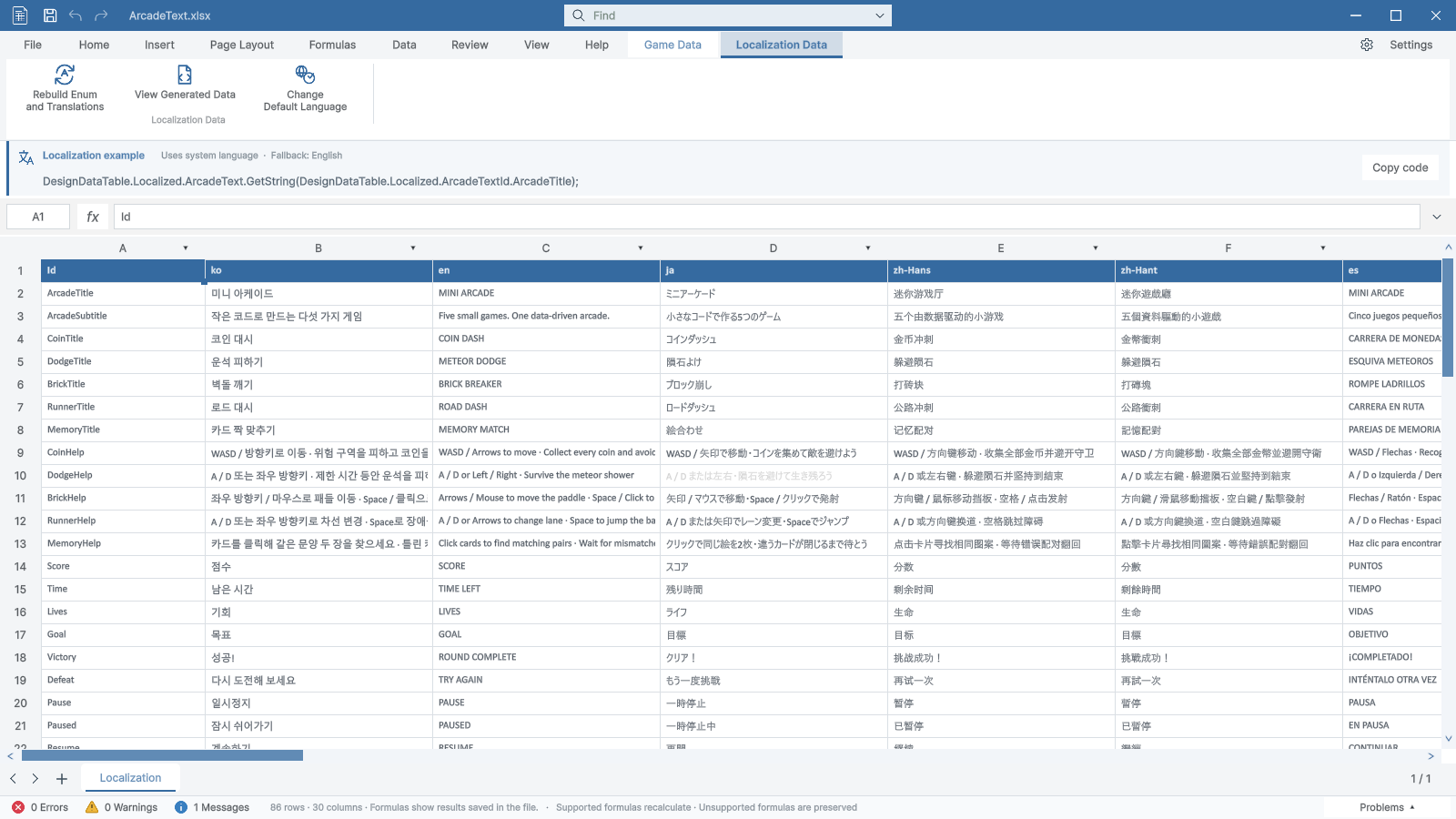
| Id / korea / english / france | Row 1 contains Id and language names. Each following row maps an Enum key to translated strings. No type row. |
| Use as Game Localization | Register from Game Data, then call the generated GetString(Enum). It selects the active system language or configured override. |
| Feature | Description |
|---|---|
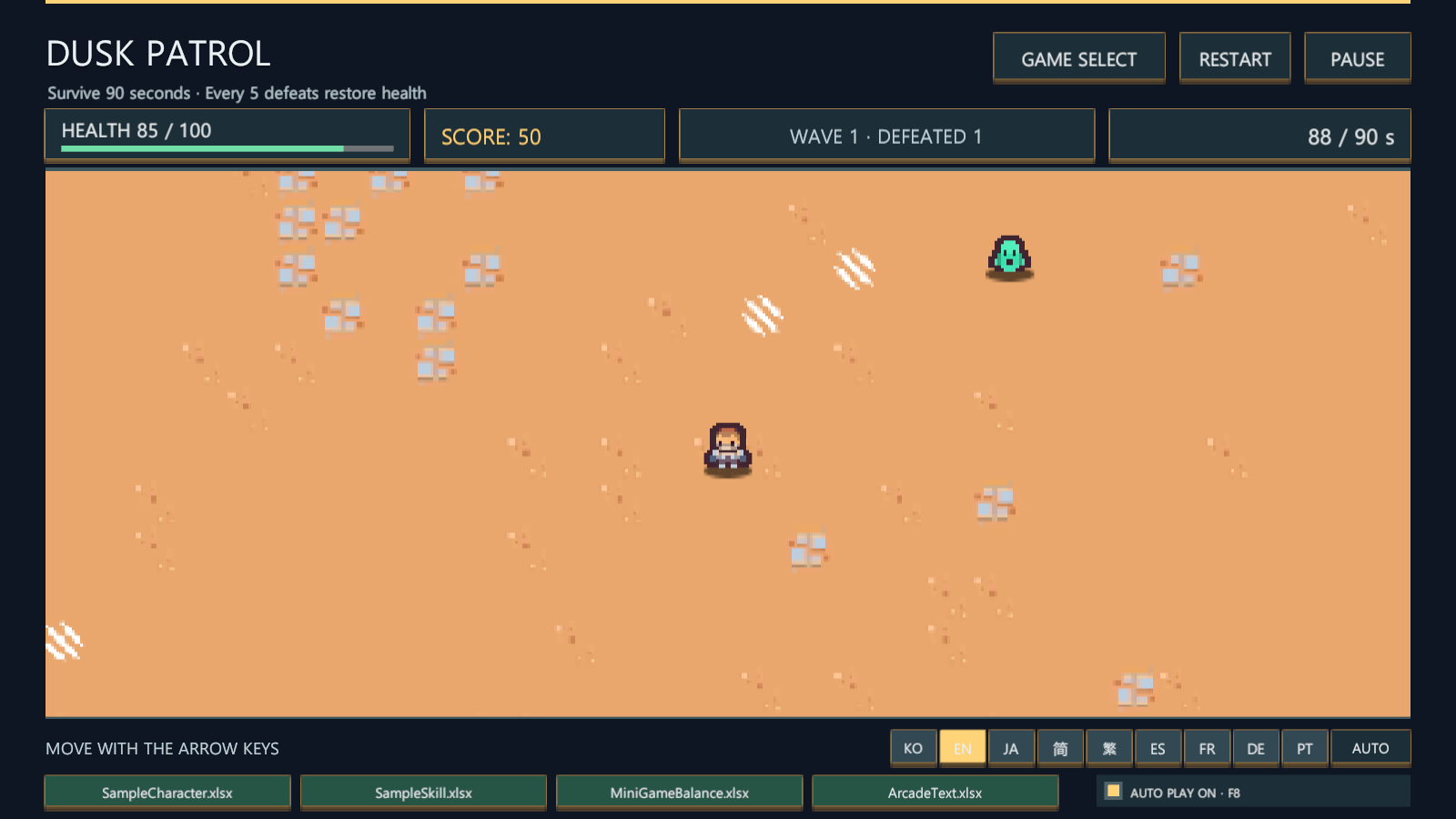
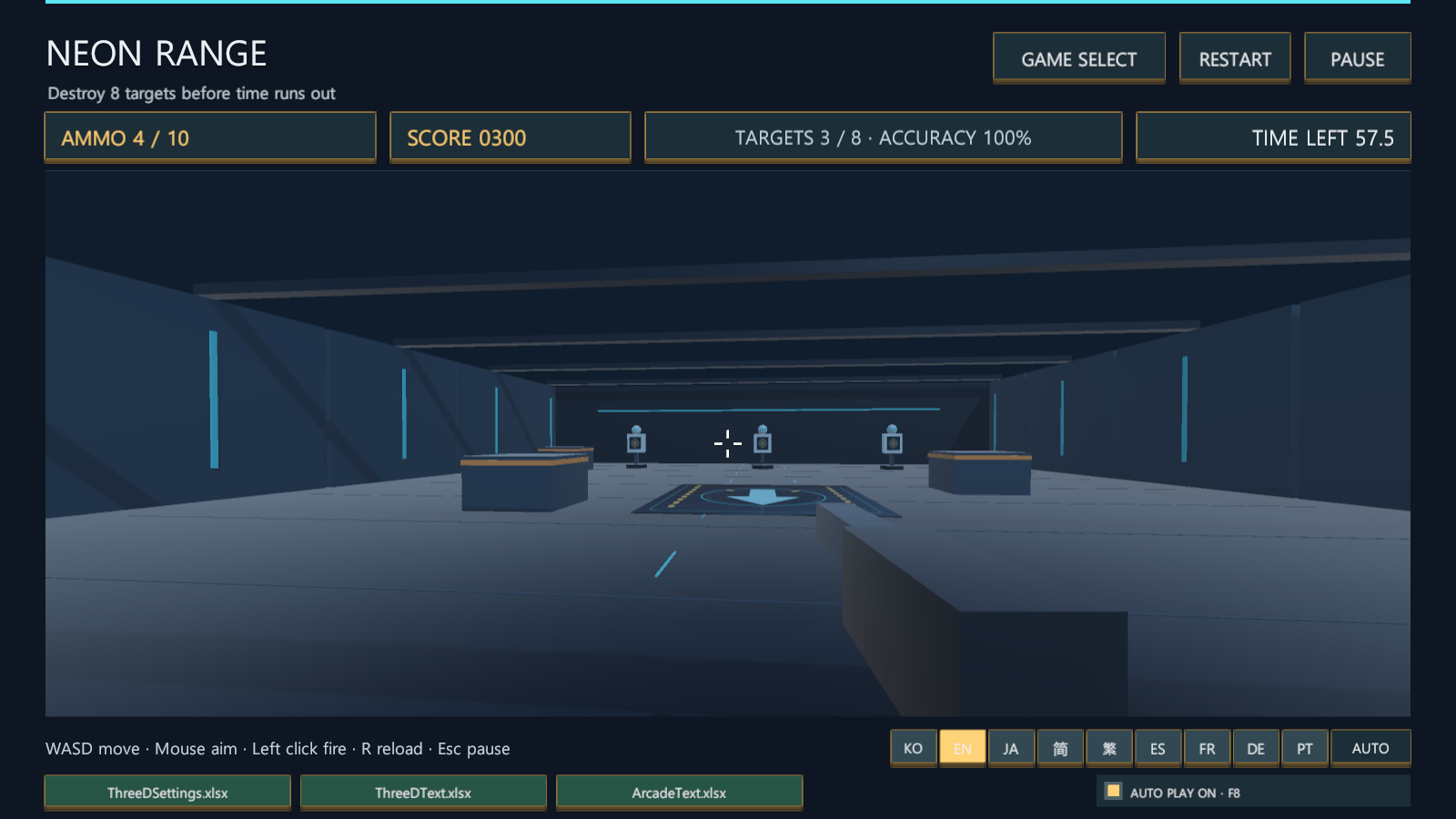
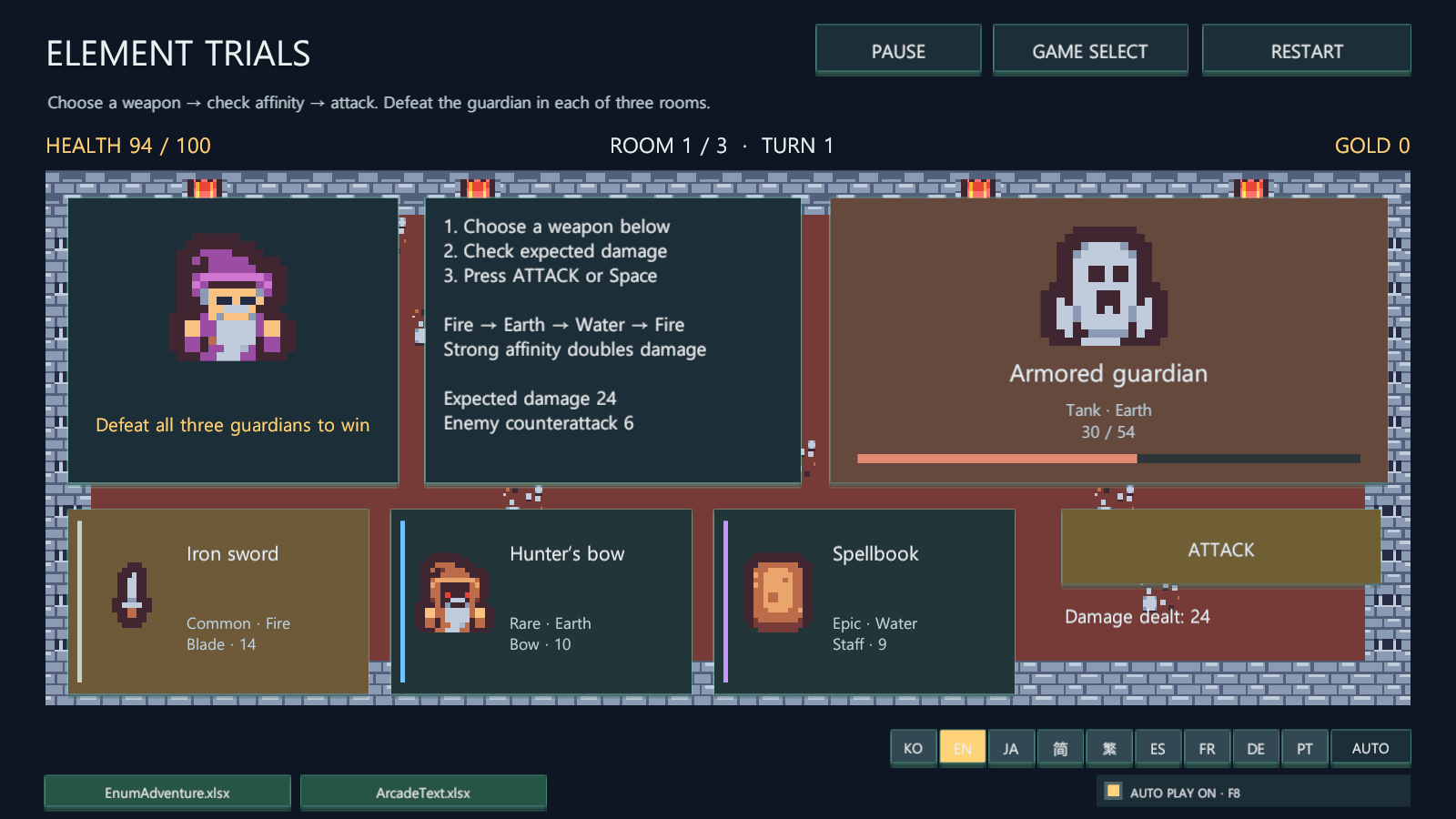
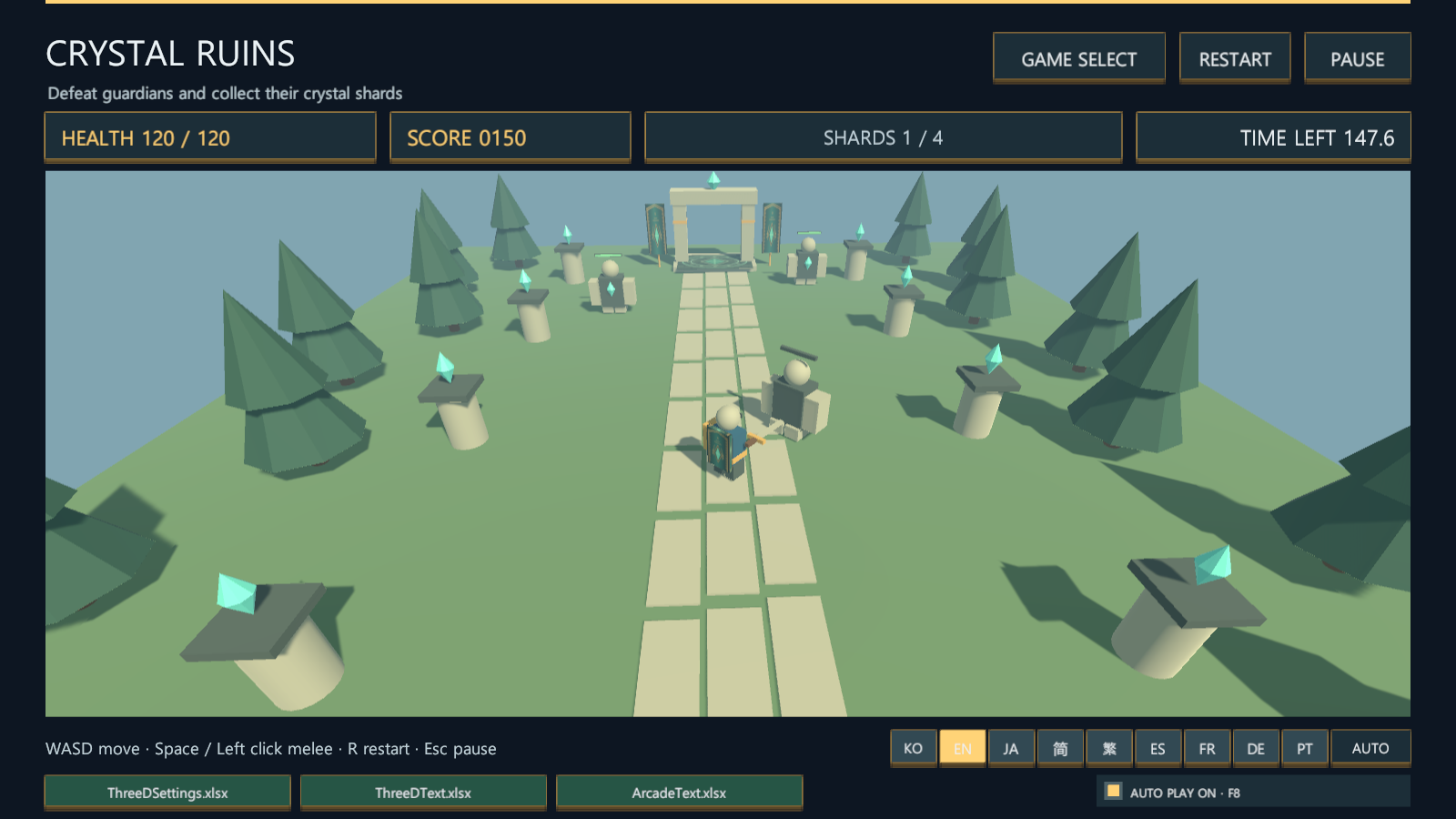
| 24 scenes · 2D / 3D | Open a scene under Sample/Scenes and press Play. Saved UI is visible before Play; each example has its own gameplay code. |
| Data buttons / Auto Play / Esc | Bottom data buttons open each source table. Auto Play defaults off; enable it for recording. Esc pauses and resumes supported examples. |
| Feature | Description |
|---|---|
| Generated / Code & Binary | Game-data save refreshes typed C# and binary records. Prefer the generated API; keep sample assemblies separate from your own code. |
| Unregister Game Data | Removes the selected sheet registration and generated outputs. The source workbook is retained. |
| AI API / MCP / CLI | MCP, CLI and Python share one Unity API: search tables, edit by Id, manage schema/Enums, read/write/format ranges and manage sheets. Inspect the real schema and revision first. The English API reference contains setup and short examples. |
| Validated batch / PNG | Validate one workbook batch with dryRun, inspect its native PNG, then commit with the unchanged revision. Any validation failure rejects the batch. Unity must be open, idle and outside Play. Unsaved drafts block edits. Check a timed-out request Id before retrying. |
using DesignDataTable;
using DesignDataTable.Localized;

var hero = SampleCharacterTable.instance.GetData(1);
string title = ArcadeText.GetString(ArcadeTextId.ArcadeTitle);